Friday, October 2, 2020

Angular data binding

 In this tutorial, we will discuss about data binding in Angular, and the two types of binding mechanism; and further see in detail how to use these techniques for efficient processing.Data binding is the process of synchronization between model and view components. To understand better – when data in the model changes, it automatically reflects changes in the view; similarly when data in the view changes, it automatically updates them in the model as well.This technique of synchronization between data and view is called Data binding.

Angular interpolation example:

Interpolation uses double braces {{ }} for displaying data in the view. Interpolation behaves like one way data binding in angular.

Databinding.tsDatabinding.htmlResult
heading:string ="Welcome to M - Tutorial";
<h1>{{heading}}</h1>

Welcome to M - Tutorial

imgurl:string ="assets/mtutorial.jpg";
<img src="{{imgurl}}">
 
 
<p>sum 10 + 20 ={{10+20}}</p>
sum 10 + 20 =30
 
<p>Total 
10 + 20 + 5 -6 ={{10+20+5-6}}
</p>
Total 10 + 20 + 5 -6 =29
 
<p>Average 
10+10+10+10+10/5 ={{10*5/5}}</p>
Average 10+10+10+10+10/5 =10
getsum()
{
    let sum=10+10+10+10+10;
    return sum;
}
<p>Total Sum 
10+10+10+10+10 ={{getsum()}}</p>
Total Sum 10+10+10+10+10 =50
getsum()
{
    let sum=10+10+10+10+10;
    return sum;
}
<p>Average using function 
10+10+10+10+10/5 ={{getsum()/5}}</p>
Average using function 10+10+10+10+10/5 =10

databinding.component.html

<h1>{{heading}}</h1>
<img src="{{imgurl}}">
<p>sum 10 + 20 ={{10+20}}</p>
<p>Total 10 + 20 + 5 -6 ={{10+20+5-6}}</p>
<p>Average 10+10+10+10+10/5 ={{10*5/5}}</p>
<p>Total Sum 10+10+10+10+10 ={{getsum()}}</p>
<p>Average using function 10+10+10+10+10/5 ={{getsum()/5}}</p>

databinding.component.ts

import { Component, OnInit } from '@angular/core';
 
@Component({
  selector: 'app-databinding',
  templateUrl: './databinding.component.html',
  styleUrls: ['./databinding.component.css']
})
export class DatabindingComponent implements OnInit {
heading:string ="Welcome to M - Tutorial";
imgurl:string ="assets/mtutorial.jpg";
  constructor() { }
 
  ngOnInit() {
  }
  getsum()
  {
    let sum=10+10+10+10+10;
    return sum;
  }
 
}

Angular property binding example:

Angular using brackets [] for property binding, it means setting the property for an element like class, style, src, id, title. This is also a type of one way data binding in angular.

Propertybinding.tsPropertybinding.htmlResult
head:string="head";
<p [ngClass]="head">Welcome to M - Tutorial</p>

Welcome to M - Tutorial

imgurl:string 
="assets/mtutorial.jpg";
<img [src]="imgurl">
 
color="blue";
<p [style.color]="color">Style setting</p>
Style setting
size=2;
<p [style.font-size.em]="size">Style setting</p>
Style setting
buttonid="btnSubmit";
<button [id]="buttonid">Submit</button>
<button _ngcontent-nju-c0="" id="btnSubmit">Submit</button>
notchecked:boolean=false;
checked:boolean=true;
<input type="checkbox" name="gender" value="female" 
 [checked]="notchecked" ><span>Female</span>
<input type="checkbox" name="gender" value="male"
 [checked]="true"; ><span>Male</span>
Female Male

Propertybinding.html

<p [ngClass]="head">Welcome to M - Tutorial</p>
<img [src]="imgurl">
<p [style.color]="color">Style setting</p>
<p [style.font-size.em]="size">Style setting</p>
<button [id]="buttonid">Submit</button>
<input type="checkbox" name="gender" value="female"  [checked]="notchecked" ><span>Female</span>
<input type="checkbox" name="gender" value="male" [checked]="checked" ><span>Male</span>

Propertybinding.ts

import { Component, OnInit } from '@angular/core';
 
@Component({
  selector: 'app-propertybinding',
  templateUrl: './propertybinding.component.html',
  styleUrls: ['./propertybinding.component.css']
})
export class PropertybindingComponent implements OnInit {
head:string="head";
imgurl:string ="assets/mtutorial.jpg";
color="blue";
size=2;
buttonid="btnSubmit";
notchecked:boolean=false;
checked:boolean=true;
 
  constructor() { }
 
  ngOnInit() {
  }
 
}

Propertybinding.css

.head{
    font-size: 24px;
    color:burlywood;
}

Angular event binding example:

Angular using parentheses () for target event which contains the left side. After equal sign referring template syntax of the function name.

<button (click)="getmessage()" </button>

Eventbinding.tsEventbinding.htmlResult
 getmessage()
{
   console.log("Welcome to Mtutorial");
}
<button class="btn btn-primary" 
(click)="getmessage()">Submit</button>
Welcome to Mtutorial
inputChange(searchValue: string): void {  
    console.log(searchValue);
  }
<input type="text" (input)="inputChange($event.target.value)"
  placeholder="Enter any text here" />
h
he
hel
hell
hello
 inputChange(searchValue: string): void {
    console.log(searchValue);
  }
<input type="text" (change)="inputChange($event.target.value)"
  placeholder="Enter any text here" />
angular tutorial

eventbinding.component.html

<button class="btn btn-primary" (click)="getmessage()">Submit</button>
<input type="text" (input)="inputChange($event.target.value)"  placeholder="Enter any text here" />
<input type="text" (change)="inputChange($event.target.value)"  placeholder="Enter any text here" />

eventbinding.component.ts

import { Component, OnInit } from '@angular/core';
 
@Component({
  selector: 'app-eventbinding',
  templateUrl: './eventbinding.component.html',
  styleUrls: ['./eventbinding.component.css']
})
export class EventbindingComponent implements OnInit {
 
  constructor() { }
 
  ngOnInit() {
  }
  getmessage()
  {
   console.log("Welcome to Mtutorial");
  }
  inputChange(searchValue: string): void {  
    console.log(searchValue);
  }
 
}

Angular two way data binding example:

Two way data binding is a combination of property binding and event binding. In one way data binding, we can change view or model at the same time.

To fulfill this functionality angular providing two way data binding this can update the model and view at the same time.

When we enter any text in the textbox, ngModel will update the model and the same time will update the view. We have given two examples of angular two way data binding.

angular two way data binding example

angular two way data binding example

To achieve the two way data binding in angular, first import the FormsModule in app.module file

app.module.ts

import {FormsModule} from '@angular/forms'; 
 
 imports: [
    ...
    FormsModule
  ],

twowaydatabinding.component.html

<input class="margintw"  [(ngModel)] ="message"   placeholder="Enter any text here" />
<br>
<p class="margintw">{{message}}</p>
 
<br>
<select class="margintw" [(ngModel)]="selectedColor" > 
    <option [value]="clr" *ngFor="let clr of color">{{clr}}</option>
  </select>
 
  <br>
  <p class="margintw">{{selectedColor}}</p>
  <br>
  <p class="margintw" [style.background-color]="selectedColor">Welcome M - Tutorial</p>

twowaydatabinding.component.ts

import { Component, OnInit } from '@angular/core';
 
@Component({
  selector: 'app-twowaydatabinding',
  templateUrl: './twowaydatabinding.component.html',
  styleUrls: ['./twowaydatabinding.component.css']
})
export class TwowaydatabindingComponent implements OnInit {
  message="Hello M-tutorial";
  color = ['Red', 'Blue', 'Green','Yellow'];
  selectedColor="orange";
  constructor() { }
 
  ngOnInit() {
  }
 
}

Angular booting process


How is angular application triggering and booting index.html file?

We have a lot of questions about how the angular application triggering index.html file while running the application. When you run your application using the ng serve command, angular starting the bundling, transpilation and compilation according to your configuration.

  • Angular bundling all HTML and typescript file, when ng build your application.
  • Transpiler compiled all typescript code as a JavaScript code.
  • Ng server serving index.html by default because of angular executing main.ts file initially.

Angular booting process step by step:

angular application loaded and started,angular booting process,how angular triggering index.html file

1. Angular executes Main.ts file initially.

2.Main.ts file booting Appmodule file using the code of 

platformBrowserDynamic().bootstrapModule(AppModule)

4. Appmodule bootstrapping the AppComponent file using the code of

bootstrap: [AppComponent]

5. Now the index.html file will be triggered through AppComponent file.AppComponent.ts having the selector tag of app-root, this root tag is defined in index.html file.

<app-root></app-root>

4. Remember that angular is a single page application (SPA). This app root is the main role of SPA mechanism.

How to change different component loading instead of loading app.component.ts by default in index.html?

Create a new component in the name of databinding using the command of ng g c databinding.

Change the index.html file tag <app-root></app-root> to  <app-databinding></app-databinding> and change app.module code bootstrap: [AppComponent] to  bootstrap: [DatabindingComponent].Now index.html file will load databinding component.

index.html

<!doctype html>
<html lang="en">
<head>
  <meta charset="utf-8">
  <title>Myapp</title>
  <base href="/">

  <meta name="viewport" content="width=device-width, initial-scale=1">
  <link rel="icon" type="image/x-icon" href="favicon.ico">
</head>
<body>
  <app-databinding></app-databinding>
</body>
</html>

app.module.ts

import { BrowserModule } from '@angular/platform-browser';
import { NgModule } from '@angular/core';

import { AppRoutingModule } from './app-routing.module';
import { AppComponent } from './app.component';
import { DatabindingComponent } from './databinding/databinding.component';

@NgModule({
  declarations: [
    AppComponent,
    DatabindingComponent
  ],
  imports: [
    BrowserModule,
    AppRoutingModule
  ],
  providers: [],
  bootstrap: [DatabindingComponent]
})
export class AppModule { }

Keyword:

Angular booting process

How angular booting index.html file?

How angular application loaded and started.

Angular project and folder structure

 In this tutorial, will learn about angular project and folder structure. When you start to study angular tutorial, you should know about where you have to place your images, script, CSS and how to configure app resources in the configuration file. The Angular app structure is very clean and well architecture framework.we can set the rule of how your app should behave while compile and run.

dist:

Initially, this folder will not be displayed when creating a new application. This folder will be displayed when you build your application. All the build files will be deployed to the dist folder with the name of your application. You can change your build file location using angular.json config file. These are the file needs to be deployed on your server.

angular project structure tutorial

Node_modules:

This folder contains all of your dependency files like jquery, bootstrap and third party libraries.

E2e:

This folder contains a complete end to end testing files.

src:

This is our main folder contains all application code like Module, Component, Service and assets.

editorconfig:

editorconfig file contains all the setting of the editor (visual studio code).we can set like charset=utf8, space, Maxine length and etc.

gitignore:

This file contains git ignore setting When anyone clones your repository from git hub.

Angular.json:

This file contains all of your application setting like CSS,javascript path configuration.

You can configure your application build path(folder), favicon path using this config file.

Karma.config.js:

This file contains all the configuration of the testing plugin.

Package.json:

This file contains which dependency version needs to be installed when you install the Node Package Manager(npm).

Tsconfig.app.json:

This file contains a compile-time setting.

Tsconfig.json:

When you compile your application, what are the rule needs to be applied?

How to install and use bootstrap, jquery in angular?

 In this tutorial, you will learn how to create a new angular application and how to install and use bootstrap, jquery in our angular 8 application?.

Bootstrap and jquery both are widely used framework in the developer industry. Same time angular also a fast-growing framework, So if you want to use bootstrap and jquery in your angular application you are in the right place.

Let's start the integration.

1. Launch the command prompt and change the directory where you want to create a new application.

How to create new angular application using command prompt

2. Create a new application using the command of ng new myapp.

How to use bootstrap in angular 8

After executing the command Angular CLI will ask, would you like to add Angular routing?

If you need it, then yes.otherwise skip it, we can create app routing module later.

Then Angular CLI will ask again, which stylesheet format would you like to use?

Choose CSS or scss which one you are going to use.

Now myapp application created successfully.

3. Open visual studio code editor and open folder of your project File >Open Folder

How to use jquery in angular 7,8 application?

how to integrate jquery in angular application

4. Now our application ready to run.Go to the visual studio terminal Terminal > New Terminal and run our application using the command of ng serve --open

how to intall bootstrap in angular 7,8 application

bootstrap in angular

5. Our first angular application running perfectly, Now we will integrate bootstrap, jquery in this application. Open a new terminal and Install bootstrap, jquery using the command of

npm install bootstrap

npm install jquery

how to configure bootstrap in angular.json

6. Bootstrap and jquery will be installed in node_modules folder that we have to configure in angular.json file

how to configure jquery in angular.json

7. Open angular.json file and configure the path in styles and script section. Make sure the sequence of file and save all the changes in the editor.

"styles": ["./node_modules/bootstrap/dist/css/bootstrap.min.css",
              "src/styles.css"
            ],
"scripts": ["./node_modules/jquery/dist/jquery.min.js","./node_modules/bootstrap/dist/js/bootstrap.min.js"]

8. We will test our bootstrap and jquery working properly working or not. Open our app.component.html and delete the existing code and include the bootstrap button.

app.component.html

<button class="btn btn-primary">submit</button>

app.component.ts

import { Component } from '@angular/core';
import * as $ from 'jquery';
 
@Component({
  selector: 'app-root',
  templateUrl: './app.component.html',
  styleUrls: ['./app.component.css']
})
export class AppComponent {
  constructor() {
    $(document).ready(() => {
        console.log('Jquery alert');
    });
}
}

Save all changes and run your application

angular 8 with bootstrap and jquery

Notes : If you are not able to get the bootstrap CSS, terminate your terminal using the command of ctrl+ c and type yes and run your application again using the command of ng serve --o

How to Environment setup and installation Angular

 In this tutorial, we will learn how to install angular 8, step by step on your system.

1.       Download and install Node.Js  from https://nodejs.org/en/

angular installation

2.       Install angular cli through command prompt using the command of

            npm install -g @angular/cli

angular 8 tutorial angular-cli-installation

3.       Download and install Visual studio code from this below site https://code.visualstudio.com/download

angular installation and environment setup

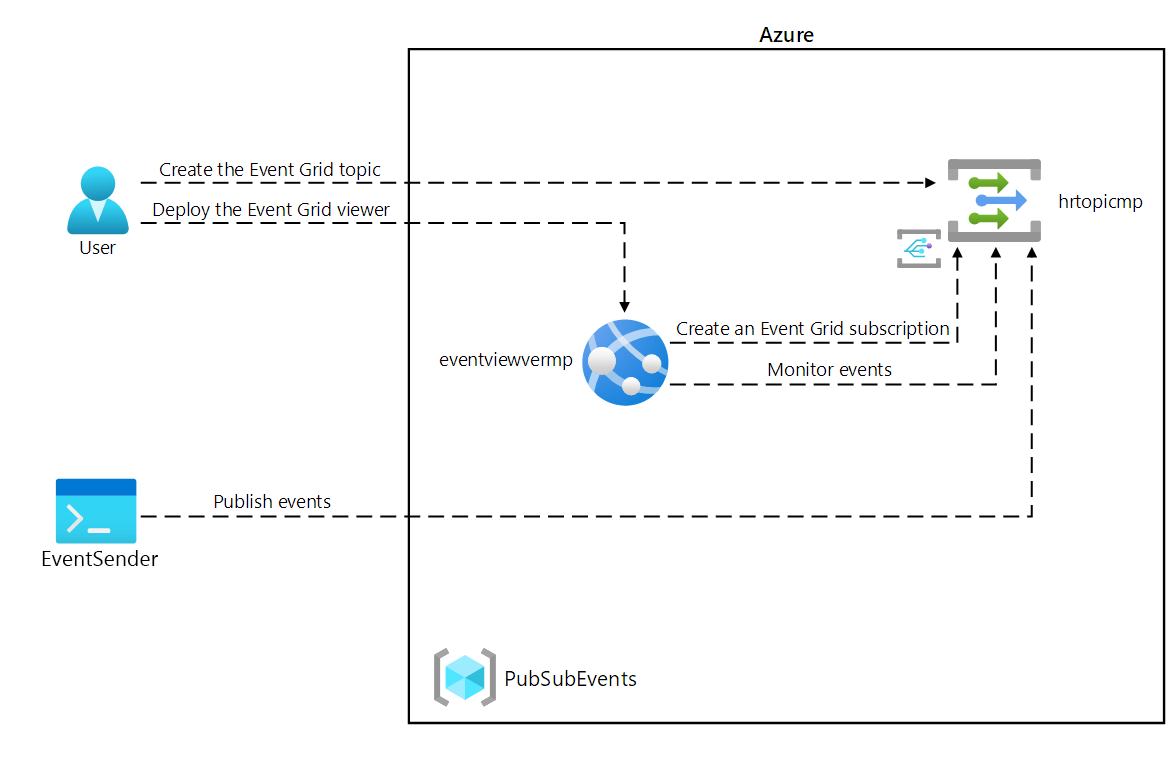
Lab 09: Publish and subscribe to Event Grid events

  Microsoft Azure user interface Given the dynamic nature of Microsoft cloud tools, you might experience Azure UI changes that occur after t...